How to Connect an AI Sales Agent to Your CRM
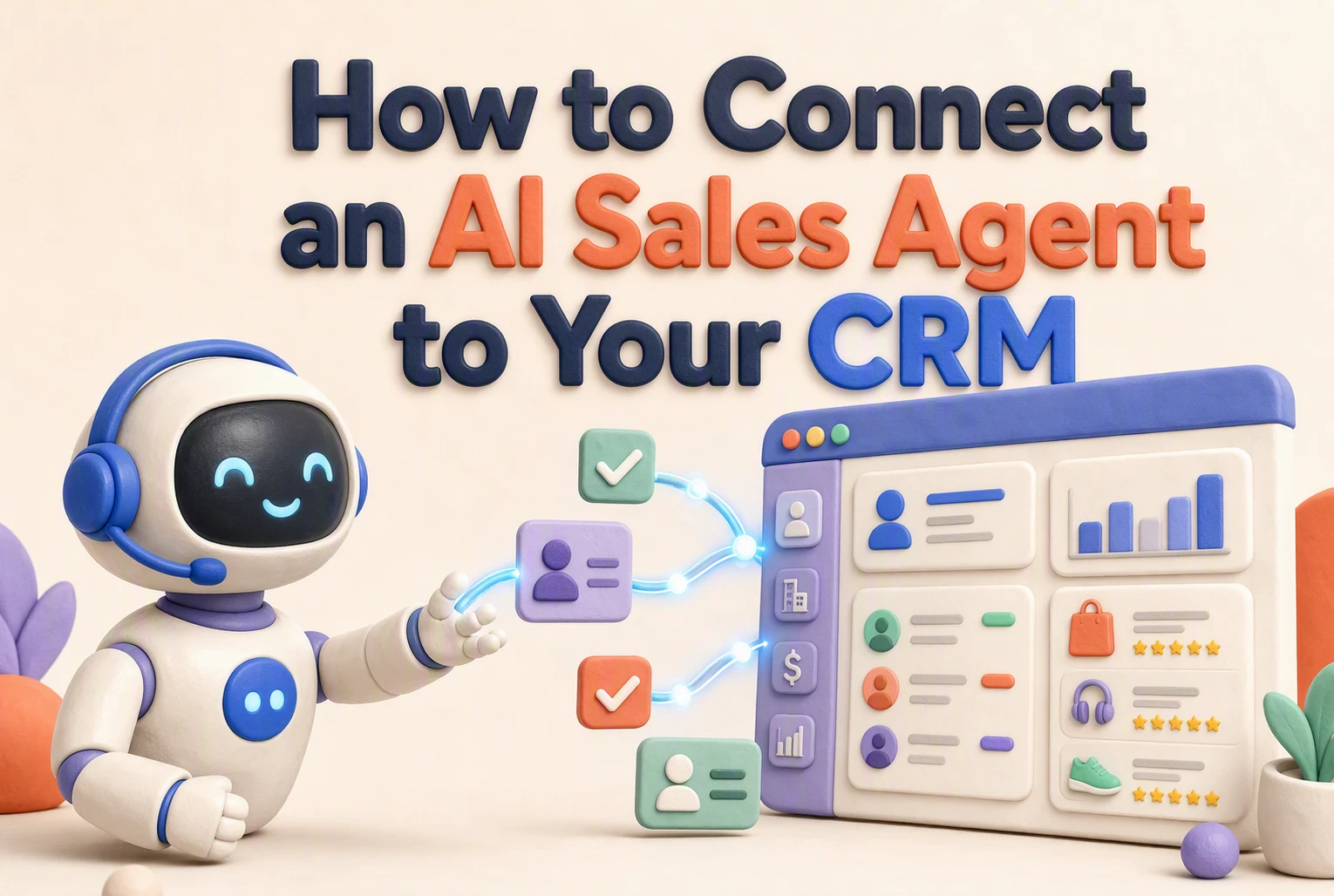
A bulk-pricing question should do more than earn a helpful reply. It should send the shopper's email, product interest, fit details, and chat context to your CRM while intent is high.
Many Shopify stores connect tools but lose key lead data or create messy records. This guide shows how to connect AI sales agent to CRM systems with clean ownership, smart qualification, safe permissions, testing, and sales handoff. You will learn how to connect AI sales agent to CRM workflows that your team can trust.
Step 1: Define What the Agent Should Send to Your CRM
Choose the Minimum Lead Record
Before you connect AI sales agent to CRM, define a lean record. Send only email, product viewed, intent, objection, and handoff status. NIST advises limiting personal data to what is needed for its stated purpose, which also reduces exposure risk (NIST privacy guidance).
![How to Set Up Custom Fields in HubSpot [2026 Full Guide]](
)
| Field | Why it matters |
|---|---|
| Intent | Prioritizes ready-to-buy shoppers |
| Product viewed | Gives sales useful context |
Assign Field Ownership
Set who can write each field:
- The agent updates intent and chat summary.
- Shopify owns order and customer facts.
- Your sales team owns follow-up status.
Tip: Never let the agent overwrite a rep's notes or deal stage.
Also Read: AI Sales Agents: The Complete Revenue Operations Guide for 2026
Step 2: Connect the Agent and Configure Secure Access
Select the Right Connection Method
Use the CRM's native OAuth connection when available. It lets you revoke access without sharing a user password. Map Shopify customer email, order history, and agent chat notes before turning on sync.

| Connection | Best use | Risk |
|---|---|---|
| OAuth app | Live CRM sync | Low, if scoped |
| API key | Limited legacy setup | Higher if shared |
Authorize Only the Required Actions
Grant read access to contacts, products, and deals. Allow write access only for qualified leads and handoff notes. Do not give the agent delete, admin, export, or billing rights.
- Create a dedicated integration user.
- Name a business owner for the connection.
- Test token revocation before launch.
NIST defines least privilege as giving only the access needed for assigned tasks.
Also Read: AI Sales Agents Setup: Build a Trustworthy Checkout Assist
Step 3: Build the Lead Capture and Handoff Workflow
Create Clear CRM Triggers
Set triggers before your agent starts capturing leads. Create a CRM record when a shopper shares an email, asks about bulk orders, requests a discount, or shows high purchase intent.
| Trigger | CRM action |
|---|---|
| Email captured | Create or update contact |
| Product question | Log product interest |
| Human request | Assign support owner |

Define one owner for each handoff. Clear roles support accountable AI use, as NIST recommends.
Preserve Context During Handoff
Send more than a name and email. Include the chat summary, products viewed, cart value, stated need, and any promised follow-up.
- Tag urgency and intent.
- Link the full transcript.
- Record consent and contact preference.
This lets your sales or support team pick up the conversation without making the shopper repeat themselves.
Also Read: AI Sales Agents: 7 Metrics to Prove Revenue Impact
Step 4: Test, Monitor, and Improve the Integration
Run Five Prelaunch Tests
Before going live, test with staff accounts:
- New lead creation and field mapping.
- Returning shopper record updates.
- Lead-score triggers and tags.
- Human handoff with full chat context.
- Consent, opt-out, and duplicate handling.
| Test | Pass condition |
|---|---|
| Handoff | Sales sees the chat and customer details |
Tip: Log each failure. NIST recommends choosing relevant AI measures and updating controls as errors appear. Review its guidance.
Watch the First Two Weeks
Check the CRM daily for:
- Missing or duplicate contacts
- Bad product or intent tags
- Unanswered handoffs
- Low-quality qualified leads
Compare agent-created leads with manual leads. Tighten prompts, routing rules, and required fields where patterns fail. Keep a named owner for fixes.
Connect shopper conversations to your CRM with Kandid. Turn qualified intent into clean handoffs and faster sales follow-up.
Frequently Asked Questions
Q1: How do you connect an AI sales agent to a CRM?
Choose the CRM fields, set secure access, map lead data, test sample chats, then send qualified leads to the right owner.
Q2: What customer data should sync?
Sync contact details, chat intent, product interest, consent status, and lead score. Avoid sending full chat logs unless your team needs them.
Q3: How do you prevent bad CRM leads?
Set clear qualification rules, require verified contact details, filter support requests, and test edge cases before turning on automatic routing.
Conclusion
A solid CRM connection needs clear data ownership, tight permissions, tested lead rules, and human handoffs. Keep only needed shopper data, as FTC guidance recommends, then review performance often.