How to Optimize Shopify AI Chatbots for Mobile Conversion

Quick Summary: Shopify chatbot conversions usually suffer more from mobile layout and timing problems than weak AI answers, so baseline mobile performance separately from desktop before making changes. Keep the launcher in the bottom thumb zone, at least 44px wide and 16px from screen edges, open conversations full screen, lazy-load the widget, use delayed intent-based triggers, and offer one-tap human handoff with short, tappable responses. Then track opens, replies, orders, and revenue by device, test one change at a time, and compare results with a control period rather than treating every chatbot sale as incremental lift. A shopper taps your chat launcher on a phone, the bubble covers the product gallery, and they leave. On desktop the same setup looks polished. Shopify chatbot mobile optimization fixes that gap: it means tuning widget placement, conversation design and measurement for thumbs and small screens. Most chat tools are built desktop-first, so this guide walks through four steps to make your mobile chat widget convert instead of crowd.
Step 1: How Do I Optimize a Shopify AI Chatbot for Mobile Conversion?
Optimize a Shopify AI chatbot for mobile conversion by baselining the mobile gap first, then working five levers: widget placement, touch targets, load speed, trigger timing, and human handoff. Most mobile chat underperformance comes from geometry and timing problems, not the chatbot's answers.
Baseline the mobile gap before you change anything
Pull your mobile vs desktop conversion rate benchmarks for chat sessions separately, not blended. Mobile shoppers convert less because small screens, slower connections and typing friction stack up. Record chat open rate, replies per session, and chatbot-attributed revenue by device so every later change has a before number.

The five levers that change mobile results
- Placement: keep the launcher out of the checkout path and respect the safe area.
- Touch target: size the chat launcher at least 44px so thumbs hit it.
- Load speed: defer the chat widget load so it never blocks first paint.
- Trigger timing: delay or behavior-based triggers; instant popups push mobile shoppers away.
- Human handoff: make escalation to a person one tap, since typing long questions on mobile is slow.
Step 2: Place and Size the Mobile Chat Widget So It Does Not Block the Product
On a Shopify mobile chatbot, place the launcher in the bottom corner, above the thumb zone, so it never covers product photos, price or the Add to Cart button. Follow these placement rules:
- Keep it 16px or more from screen edges and above the browser's bottom bar
- Keep the launcher at the 44px touch target size already covered in Step 1
- Test on product, cart and checkout pages before going live
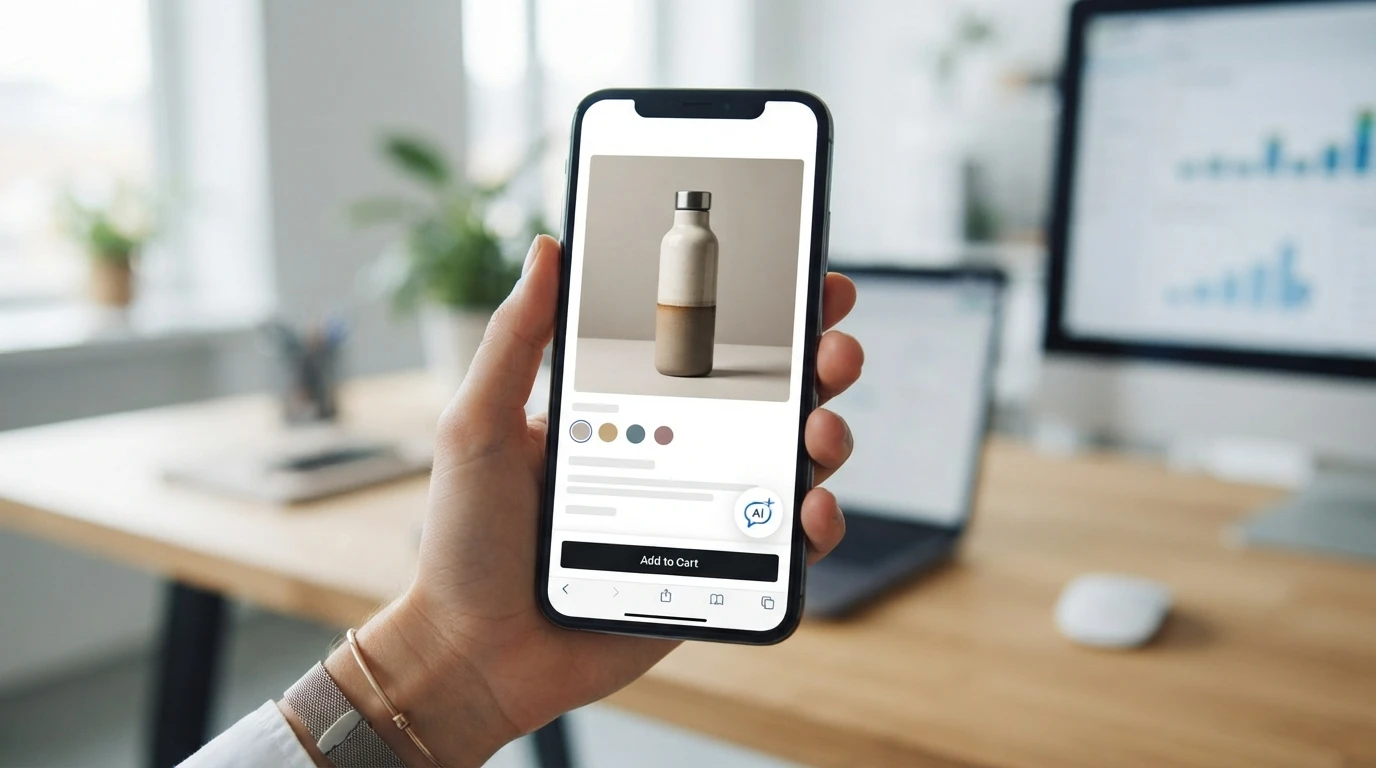
Full-screen chat versus inline bubble on phones
On small screens, open the chat in full screen. An inline bubble crowds the page and forces scrolling. Full screen gives the conversation room and keeps shoppers on your store instead of leaving mid-session. Shopify mobile chatbot settings usually offer both, so pick one and stay consistent.
Step 3: Make the Mobile Conversation Fast, Short and Easy to Hand Off
Short answers, one question at a time, tappable options
Small screens punish wordy replies. Keep answers to two or three lines, ask one question at a time, and offer tappable buttons instead of free typing. Shopify mobile chatbot behaviour should also allow quick handoff: when a shopper's question turns complex, route them to a human agent without losing context. A good handoff design moves the full conversation with the transfer.
Trigger timing and page weight
Does the chat widget slow down your Shopify store on mobile? It can, so test it. Run your page through a speed checker with the widget on and off, and compare load times. Triggers matter too: on mobile chat widget placements, fire the greeting only on intent pages like product or cart views, after a few seconds, never on load.
Lazy-load the widget script so nothing blocks the first paint on a slow connection.
When timing needs human help, plan routing before you launch. A guide to setting up chatbot escalation on Shopify covers routing rules and when to escalate, including how to set up chatbot human handoff cleanly.
Step 4: Measure Mobile Results and Fix What the Data Shows
Read mobile and desktop as separate journeys
Your Shopify chatbot mobile optimization efforts only pay off if you measure devices apart. Desktop converts far better: one US study found desktop rates nearly 3x smartphone rates, so a blended number hides mobile problems. Segment by device, track chat opens, replies and orders separately, and judge mobile against mobile benchmarks. Attribution has limits too, since chatbot-attributed revenue differs from incremental revenue.
Common mobile mistakes to avoid
| Mistake | Fix |
|---|---|
| Judging one blended conversion rate | Segment every metric by device |
| Changing widget and copy at once | Test one mobile chat widget placement fix at a time |
| Ignoring load speed | Check chat widget load speed on 4G |
| Counting every chat sale as lift | Compare against a control period |

Most Shopify stores lose mobile shoppers before chat even loads. Kandid's mobile chat widget for Shopify is built for thumb-speed answers. See how the Kandid AI sales agent fits your store.
Frequently Asked Questions
Q1: How do I optimize a Shopify AI chatbot for mobile conversion?
Baseline mobile vs desktop numbers first, then tune five levers: launcher placement, 44px touch targets, load speed, trigger timing and one-tap human handoff.
Q2: How should a Shopify chatbot widget be placed and sized on mobile?
Put the launcher in the bottom corner, above the thumb zone, at least 44px and 16px from edges. Open chats full screen so nothing covers product photos or Add to Cart.
Q3: Why do mobile shoppers convert less than desktop shoppers on Shopify?
Small screens, slower connections and typing friction stack up. US research shows desktop rates near 3x smartphone rates, so segment every metric by device.
Q4: How do I know if my chat widget slows down my mobile store?
Run a speed check with the widget on and off, ideally on 4G. Lazy-load the script so it never blocks first paint.
Conclusion
Mobile conversion wins come from geometry, timing and honest measurement, not smarter answers. Fix placement, load speed and handoff first, then segment by device. Mobile-specific Shopify AI chatbot setup beats desktop-first defaults on small screens.