Shopify AI Chatbot Setup Guide for Stores
Quick Summary: A Shopify chatbot works only as well as the catalog, policies, and order data behind it, so clean those sources before launch. Start with free Shopify Inbox for basic chat and order help, then add a third-party AI agent such as Kandid for stronger product discovery and recommendations. Set clear rules for human handoff, test difficult questions on mobile, and measure revenue against a no-chat holdout to avoid overstating results.
A Shopify AI chatbot is only as good as the data behind it. It answers from your catalog, policies and orders, so it inherits every gap in that information. You can install the widget in five minutes, but the first answer shoppers get depends on data most stores have never reviewed.
This Shopify AI chatbot setup guide walks you through the fix: start with Shopify's free first-party option, prepare your data, design human handoff rules, and measure the revenue your chatbot actually drives.
Step 1: Install the Chatbot on Your Store
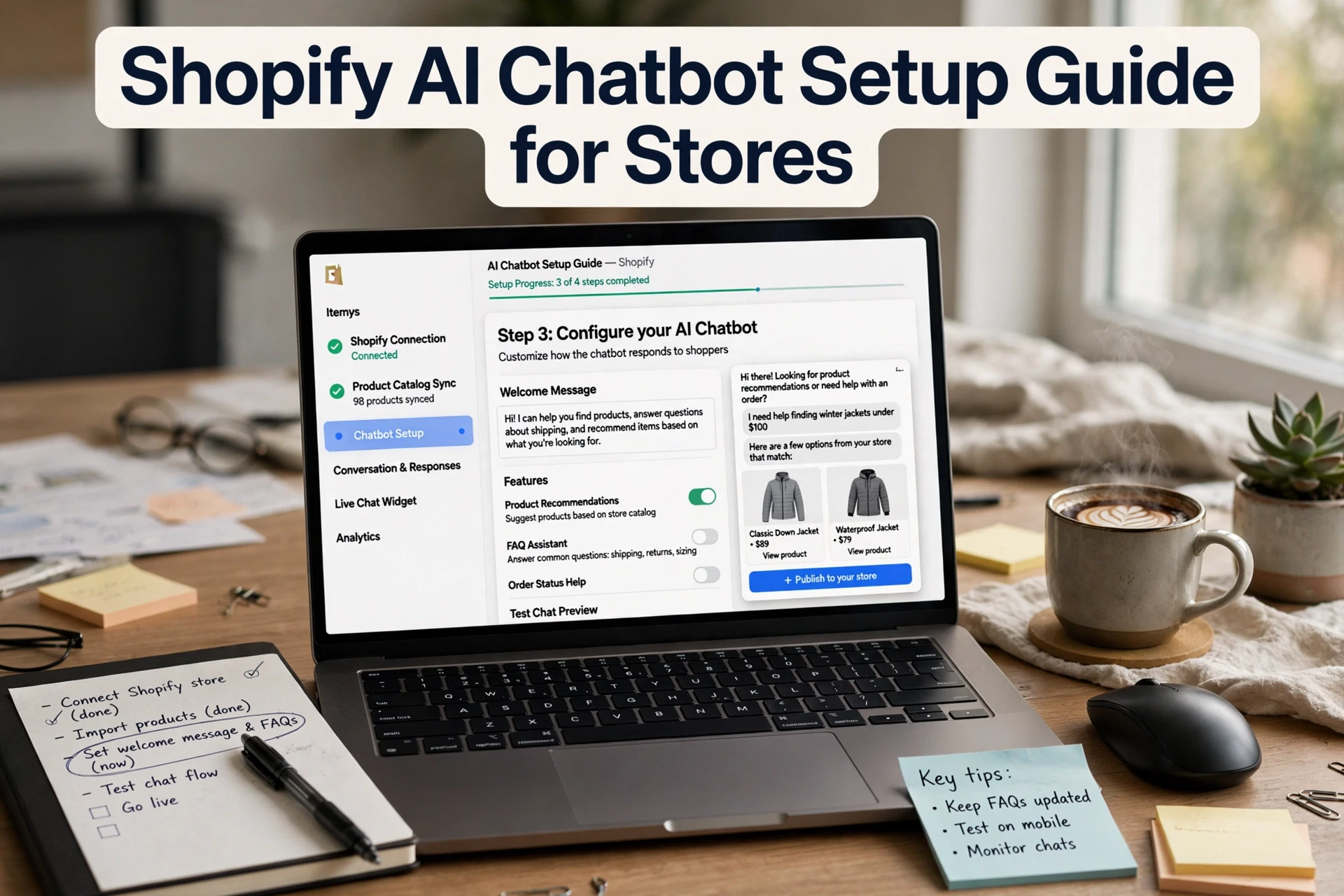
How to install an AI chatbot on Shopify in four steps
The fastest path starts with Shopify's own chat app, then adds an AI agent from the App Store if you need more. Here is the basic flow:
- Open your Shopify admin and go to Settings > Apps.
- Install Shopify Inbox, the free first-party chat app.
- Pick an AI chatbot app from the App Store and connect it to your store.
- Set the chat bubble position, welcome message and test it on mobile.

Tip: Test the chat on a phone. Most shoppers will meet your chatbot on mobile, not desktop.
First-party Shopify AI versus a third-party AI sales agent
Shopify Inbox is free and includes an opt-in AI assistant that answers questions, looks up orders and recommends products.
| Option | Cost | Best For |
|---|---|---|
| Shopify Inbox | Free | Basic chat, order help, small catalogs |
| Third-party AI agent | Paid | Product discovery, recommendations, deeper store data |
If you want a dedicated AI sales agent for Shopify with stronger product guidance, third-party tools go further. Merchants weighing their first setup can compare options in this Shopify AI chatbot overview before installing anything.
Step 2: Configure the AI on Your Catalog, Policies and Orders
A chatbot answers only as well as the data you give it, so this step decides whether it helps or frustrates shoppers.
Feed it clean product and policy data
Connect your catalog, then check what the bot actually sees. Fix missing sizes, vague titles and broken variant names first. Add short answers for your top twenty questions: shipping costs, returns windows and size charts. Building a solid chatbot knowledge base early prevents wrong answers later, and a good AI sales agent for Shopify handles product discovery once that data is tidy.

Set tone, rules and guardrails
Choose how it speaks: friendly, short and plain. Then set hard limits. Never promise delivery dates you cannot guarantee, never guess on sizing when a chart exists, and never quote discounts that are not live. Write these rules once and test them with tricky questions before going live.
Design the human handoff and order lookup path
Some chats should reach a person: refund disputes, angry messages and anything about payment. Set your chatbot human handoff rules Shopify stores can trust, like "after two unclear answers, offer a human." Connect order lookup so shoppers can self-serve order status, cutting tickets without adding staff hours.
Step 3: Test, Launch and Measure Conversations
Run a pre-launch test script
Test the chatbot like a picky shopper before you go live. Ask about shipping to India and the UK, returns, sizing and out-of-stock items. Check that it answers from your real product data, hands off to a human when unsure, and never invents a price or policy. Fix every wrong answer by updating your chatbot knowledge base, then rerun the test. Only launch once the same questions get the same correct replies.
Measure revenue without overstating it
How do you measure whether a Shopify chatbot increased revenue? Compare chatbot-attributed revenue (orders after a conversation) with assisted revenue and true incremental revenue from a holdout group. Set a clear attribution window, say 7 or 14 days, and state it in every report. Sessions where a shopper chats tend to convert better, but chatty buyers may have bought anyway, so don't read that as guaranteed lift.
| Metric | What it tells you |
|---|---|
| Chat-attributed revenue | Orders within your attribution window |
| Assisted revenue | Orders where chat helped but checkout happened later |
| Incremental revenue | True lift versus a no-chat holdout |
A structured way to track chatbot revenue attribution is covered in a separate guide.
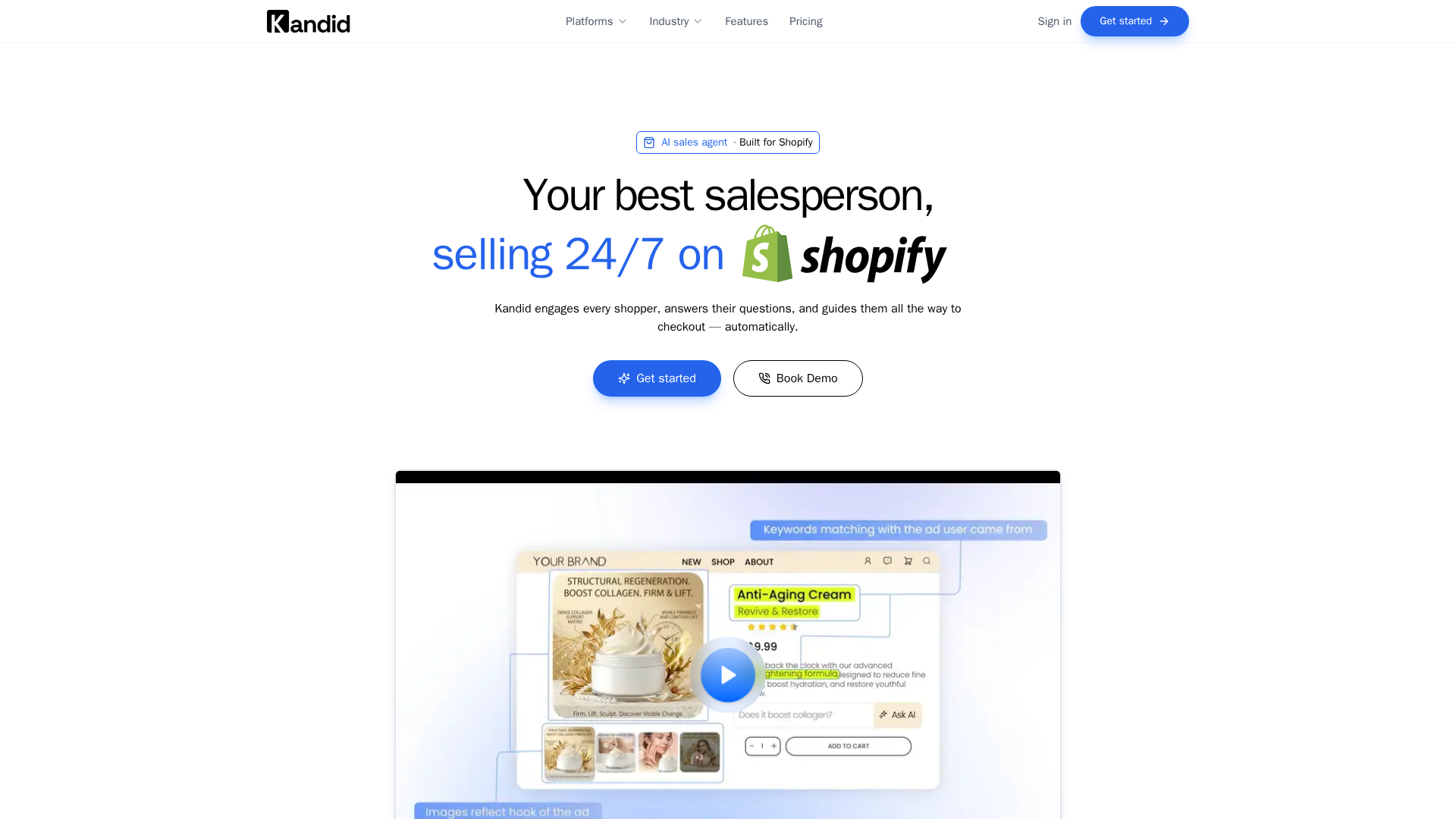
Set up your chatbot, then let it answer shopper questions around the clock. See how Kandid fits your store, and start with the setup steps above.
Frequently Asked Questions
Q1: How do I set up an AI chatbot on Shopify?
Install Shopify Inbox from your admin, add an AI chatbot app, connect your catalog and policies, then test answers on mobile.
Q2: Is Shopify Inbox AI assistant free?
Yes. It answers questions, looks up orders and recommends products at no cost.
Q3: When should a chatbot hand off to a human?
On refunds, payment issues and angry messages, or after two unclear answers.
Conclusion
Setup is simple; data quality decides the results. Start with Shopify Inbox, clean your catalog and policies, set clear handoff rules, and measure chatbot-attributed revenue honestly before judging whether the chatbot earns its keep.