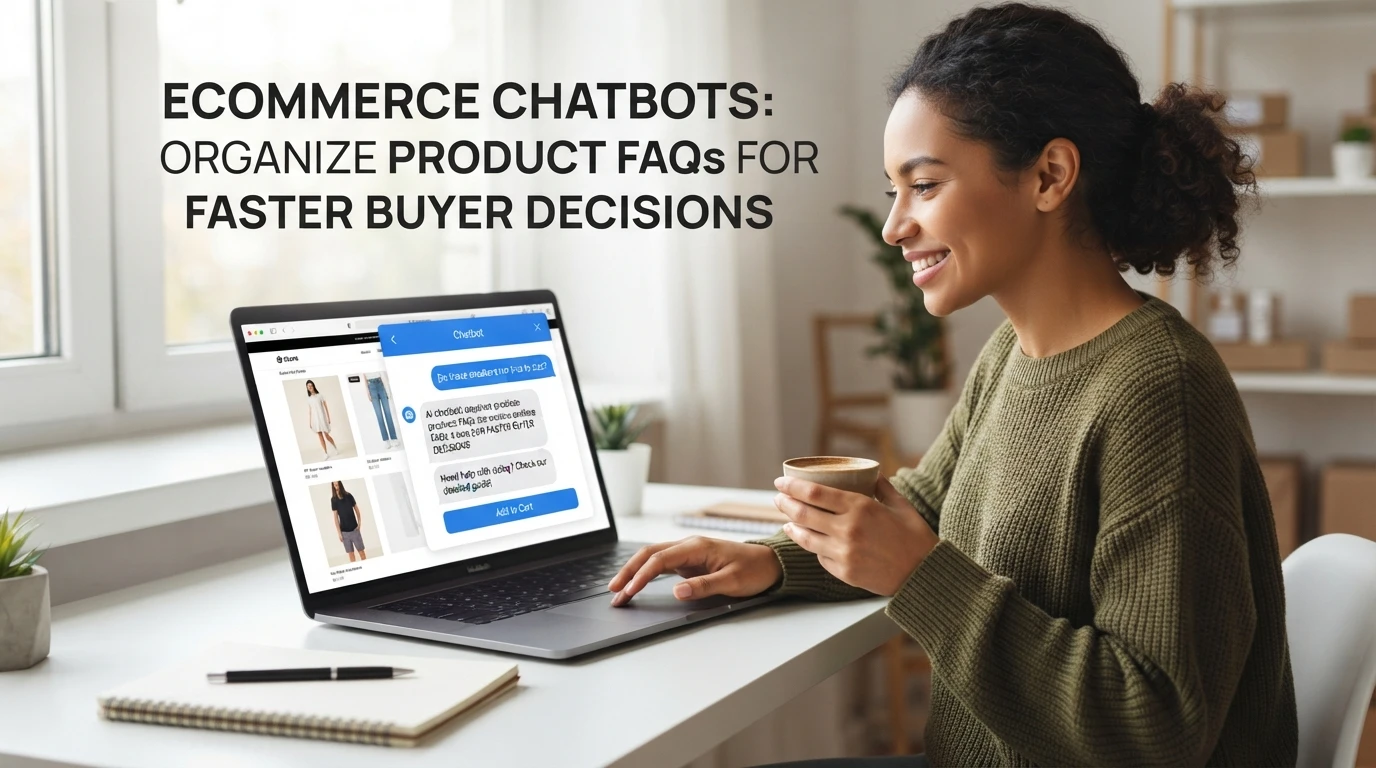
How to Set Up an Ecommerce Chatbot in 2026

Quick Summary: Picking the right chatbot for a Shopify store depends on chat volume: free Shopify Inbox works for simple, staffed questions, while an AI sales assistant like Kandid handles after-hours product recommendations and unattended selling. Setup runs through installing the app, approving only the needed product and order access, configuring the widget with clear handoff rules, and training it on accurate catalog and policy data. Before launch, test 20 to 30 real shopper questions including refunds and out-of-stock cases, then track resolution rate, chat conversions and handoff volume weekly to catch gaps in product information. A shopper in Mumbai lands on your store at 1:47 AM, can't find her jacket size, and leaves. No agent is awake to save the sale. This guide walks through Shopify chatbot setup step by step, from Shopify bot installation to training, handoff rules and tracking revenue. Done right, your ecommerce sales assistant answers, recommends and sells while you sleep.
Step 1: Pick the Right Chatbot Path for Your Store
Your Shopify chatbot setup starts with one decision: free inbox tools or a paid AI assistant. Both work. They solve different problems.
When Shopify Inbox Is Enough
Shopify Inbox costs nothing and handles the basics well. It gives you live chat, saved replies and order details right in your admin. That covers most stores doing under a few hundred chats a month with a human answering during business hours. If your questions are simple, like "where is my order" or "is this in stock," and you reply within an hour, start here. You can always upgrade later.

When You Need an AI Sales Assistant
An AI assistant earns its cost when chats arrive at 1:47 AM, product questions repeat, or nobody is free to answer. Tools like Kandid train on your catalog to recommend products and close sales unattended, so Shopify chatbot setup becomes hands-off instead of another inbox to watch.
Step 2: Install and Connect the Chatbot to Shopify
Installation takes minutes, but the access choices you make here decide what the bot can see and where shoppers meet it.
Approve Access Scopes and Channels
Install the app from the Shopify App Store and review the permissions it asks for. Most tools need read access to products, collections and order status so they can answer "where is my order" questions without human help. Grant only what matches the features you plan to use. Then pick your channels: website widget, and optionally Instagram, WhatsApp or Messenger if the tool supports them.
Configure the Widget and Handoff
Set the widget's position, colors and welcome message to match your brand. Keep the launcher visible but unobtrusive; bottom-right is standard. Next, define when the bot hands a chat to a human. Common triggers are refund requests, complaints or a shopper asking twice without resolution. Route handoffs to a monitored inbox during staff hours, or tell shoppers when a reply will come. For Shopify-specific setup and what the assistant reads from your store, see our Shopify AI sales agent overview.
Step 3: Train, Test and Launch
Training is mostly about feeding the bot accurate store data, not writing long scripts.
Build the Knowledge Base
Start with your product catalog, shipping and return policies, size guides and top FAQ pages. Tools like Kandid pull answers from your store data, so outdated copy shows up as wrong chat replies. Fix the source first, then re-sync. For deeper catalog work, see this guide on training a Shopify AI chatbot on product data.

Run a Pre-Launch QA Pass
Test 20 to 30 real shopper questions before going live. Include hard cases: refunds, size doubts, out-of-stock items and one question the bot must refuse. Review bot responses before publishing changes and keep human handoff on.
Step 4: Measure Results and Improve Weekly
Measure your chatbot weekly so small problems don't become lost orders. Track four things: resolution rate, conversion rate on chat sessions, top questions asked, and handoff volume. If the same question keeps failing, add the answer to your training content. Watch drop-off points too - they often point to missing product information rather than a bot flaw. Adjust one change at a time, then compare the next week's numbers.
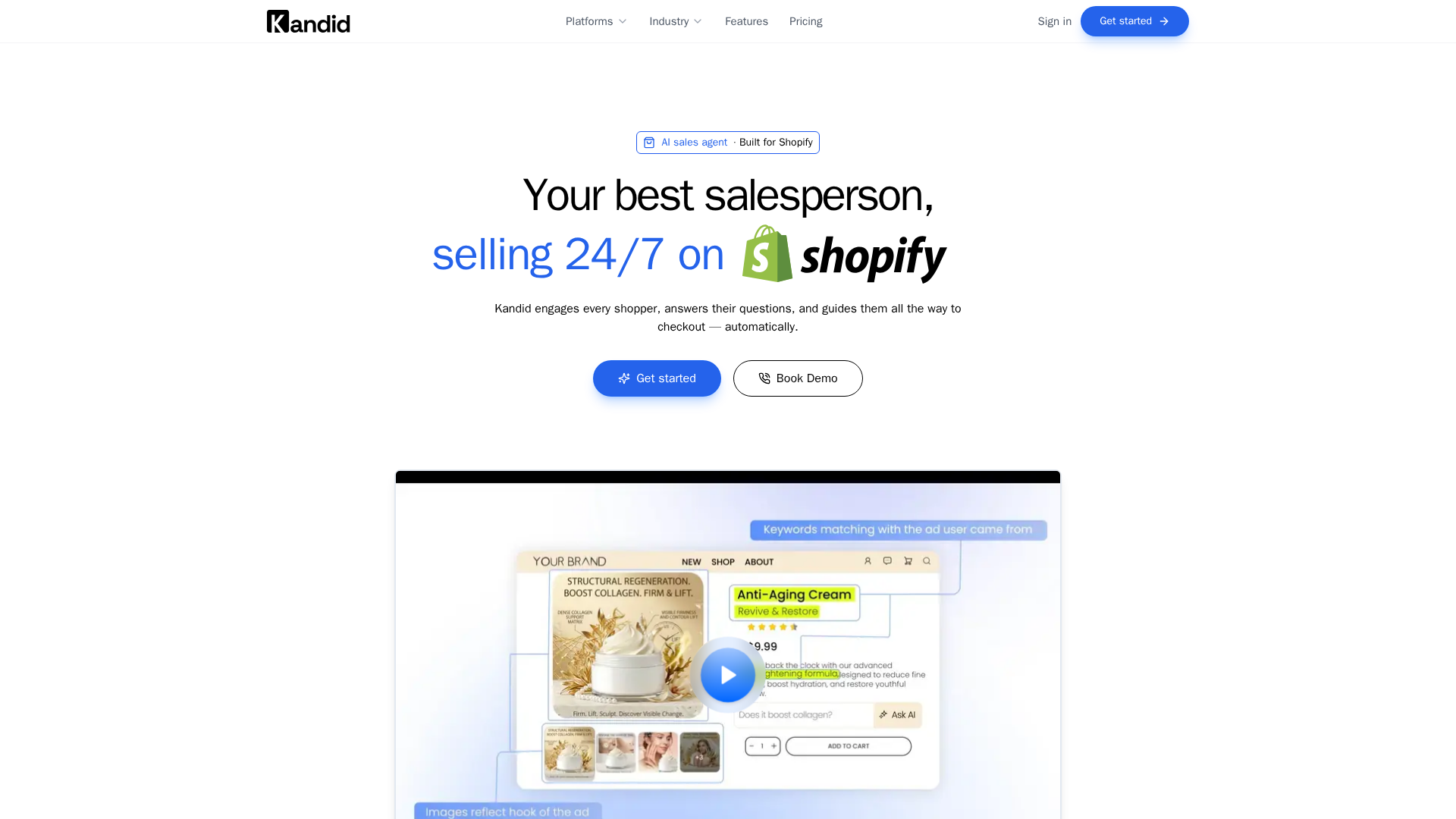
Your chatbot should turn late-night browsers into buyers, not leave them guessing. See how Kandid answers product questions, recommends items and hands off to your team: visit kandid.ai today.
Frequently Asked Questions
Q1: How do I set up an AI chatbot on my Shopify store in 2026?
Install an app from the Shopify App Store, approve product and order access, configure the widget, add policy content, then test 20-30 questions before launch.
Q2: How much does an ecommerce chatbot cost for a Shopify store?
Shopify Inbox is free. Paid AI assistants vary by vendor and plan, so compare features and chat volume on current pricing pages.
Q3: What is the best AI chatbot for Shopify ecommerce in 2026?
It depends on your volume and goals. Stores needing unattended product recommendations may suit AI tools like Kandid; simple, staffed chats work with free inbox tools.
Conclusion
A good chatbot setup comes down to four steps: pick the right tool for your chat volume, install with only the access you need, train it on accurate store data, and measure results weekly. Start with Shopify Inbox if your team answers quickly, and move to an AI assistant when questions arrive after hours.