Shopify Conversion Measurement: Validate Chat Tracking With Test Orders
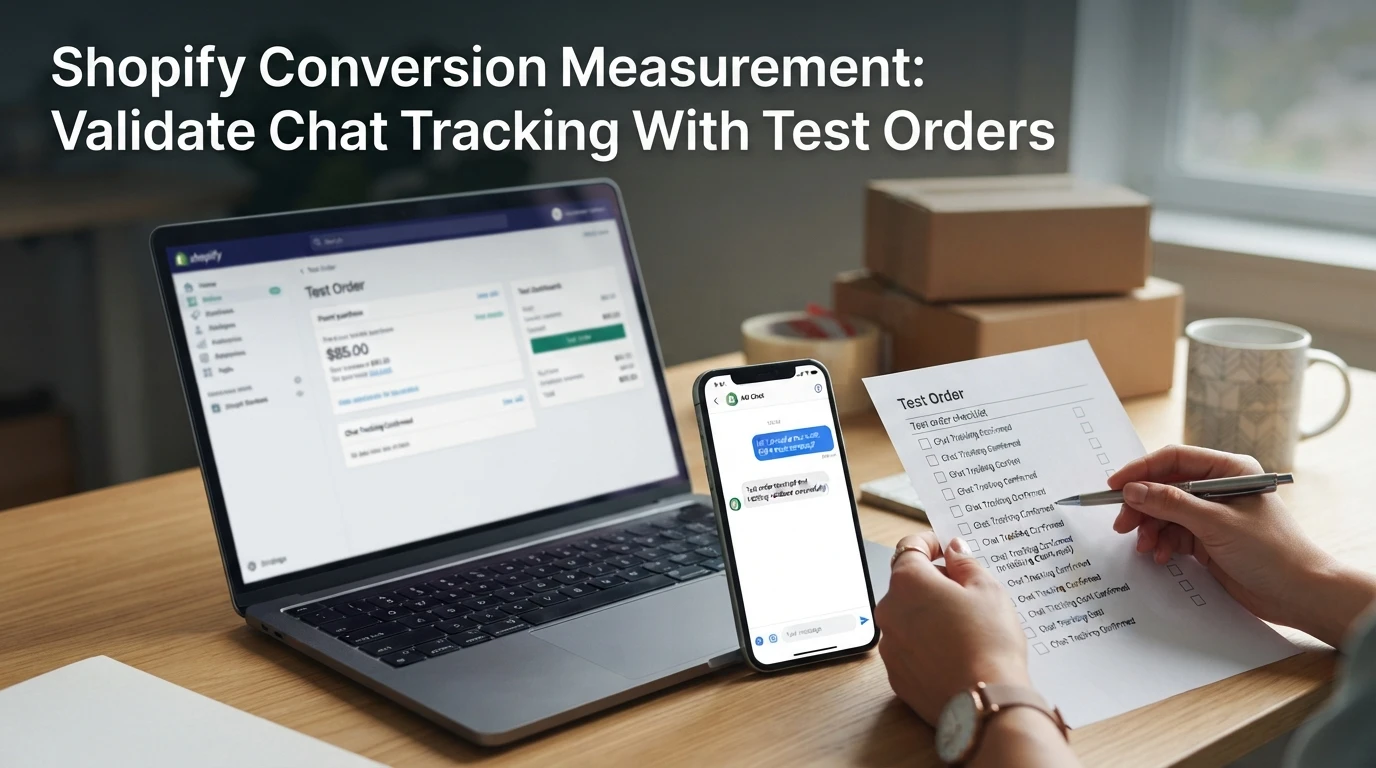
Quick Summary: Placing a single test order through a chat-recommended product, capturing its session ID and timestamps, then reconciling that order across Shopify, GA4, and the chatbot dashboard is the only way to know your chat tracking actually works. Most failures come from consent being blocked or totals under $1 USD, not broken code, so run one order with consent granted and one denied. Kandid's chatbot credits revenue directly to the originating chat session, which makes this reconciliation simpler than tools relying on last-click attribution.
A test order that lands in Shopify and a sale that shows on your chat dashboard prove nothing on their own. Orders exist whether or not your events fired correctly. Real Shopify chat tracking with test orders means checking every step: chat opened, product click, add to cart, purchase and the chat-to-order link. This guide walks through one test order, end to end, so you can reconcile Shopify, GA4 and your chatbot's reporting against a single chat session ID and fix any broken event.
Step 1: Configure the Test Environment
Validating Shopify chat tracking with test orders starts before you click buy. Set the payment method, open your reporting surfaces and fix the consent state so nothing later muddies the data.
Choose and Enable a Test Payment Method
In Shopify admin, go to Settings > Payments. Enable test mode on Shopify Payments and use its test card numbers, or switch to the Bogus Gateway for a simulated transaction. Keep test totals above $1 USD equivalent.
Open the Three Surfaces You Will Reconcile
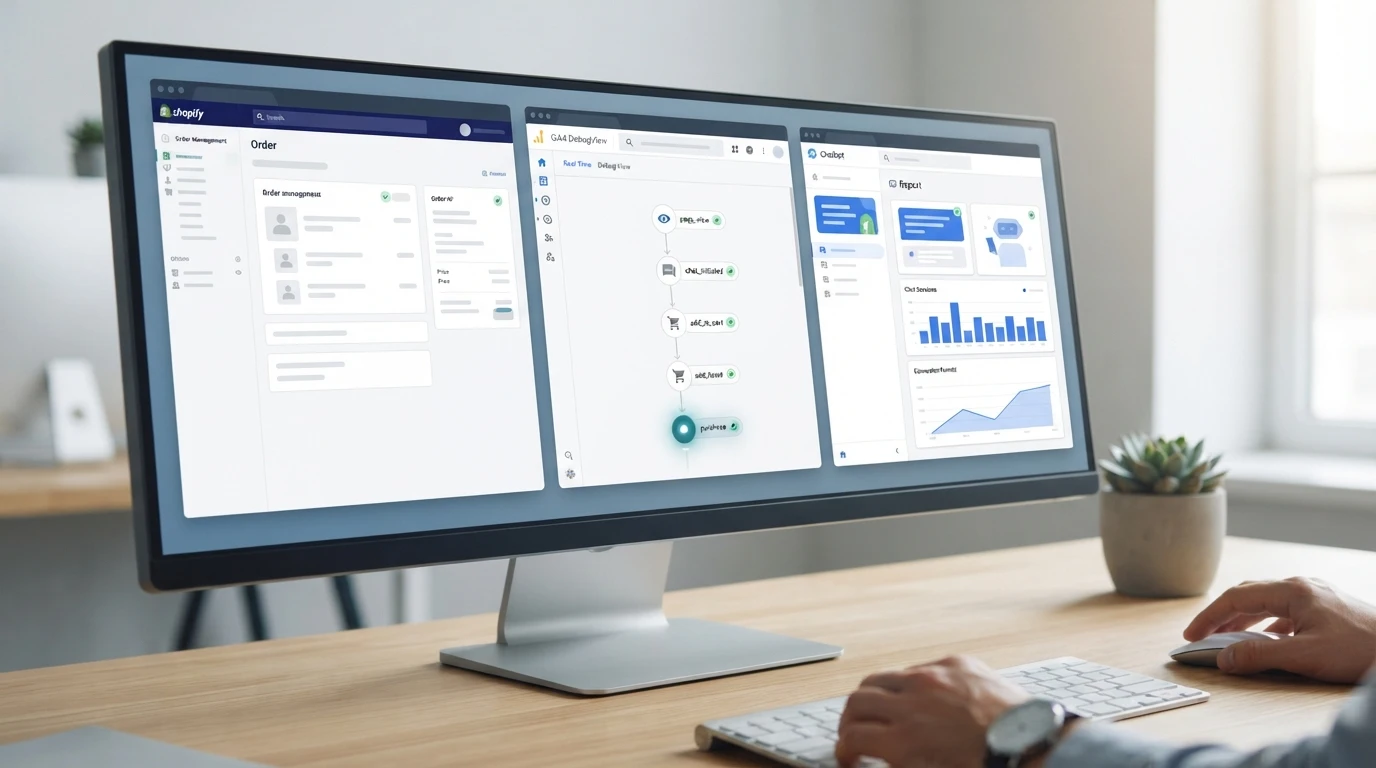
Open Shopify's order admin, GA4's DebugView or real-time report, and your chatbot dashboard side by side. Keep one browser tab per surface. You will match every event to a single chat session ID, so have it visible before the order starts.
Decide the Consent State for This Run
Pick one: consent accepted, or consent denied. If cookies are blocked, GA4 will not record the purchase, and that silence can look like broken chat tracking. Run the same state for test and control orders. Shopify's test payment gateway docs cover the payment side; consent lives in your banner app.
Step 2: Fire One Documented Chat-to-Purchase
Capture the Chat Session ID at the Start
Before placing the order, open the chat widget on your storefront and start a session. Copy the session ID from the widget, browser dev tools, or your chatbot dashboard. That single ID is the thread tying Shopify chat tracking with test orders together across every platform you will reconcile later.
Drive One Recommended Product Through Checkout
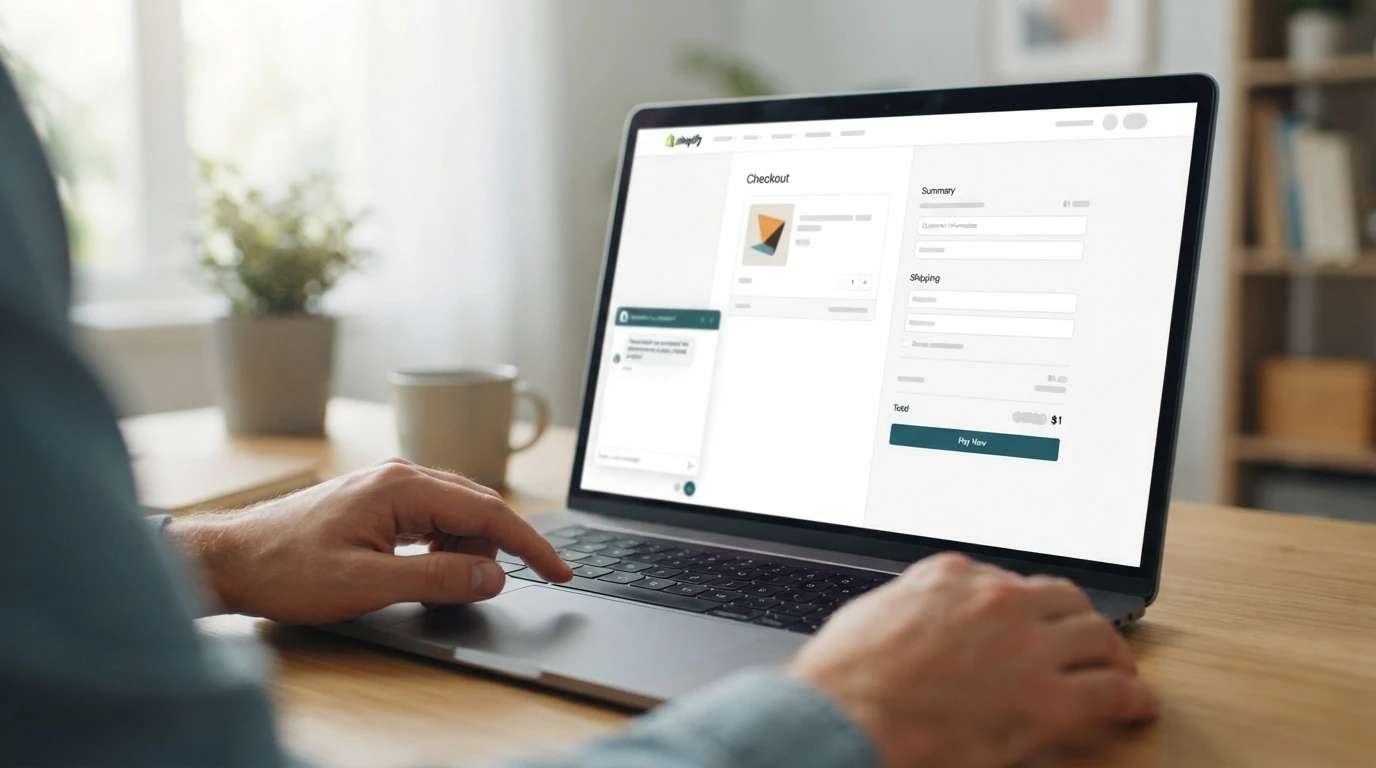
Ask the chatbot to recommend a product, click its recommendation, and add that exact item to cart. Use a product the bot surfaced, not one you found yourself, so the referral path stays clean. Then go straight through checkout and pay. Keep the total above $1 USD equivalent, as tiny orders can fail or get filtered.
Complete the Test Order and Lock the Timestamps
Finish payment and note the exact time of the order confirmation. Record three timestamps: the chat start, the recommendation click, and the purchase. Screenshot each one. When you compare Shopify, GA4, and your chatbot dashboard next, those timestamps prove the events belong to one session rather than three coincidences.
Step 3: Reconcile Events Across All Three Surfaces
Once the test order is placed, compare the three dashboards within minutes, while the data is fresh. Each surface should show the same order tied to one chat session ID.
Check Shopify Analytics for the Order
Open the order in your admin and confirm it exists with the correct total and timestamps. If it shows up here but nowhere else, the sale happened but the tracking chain broke downstream.
Check GA4 DebugView and the Purchase Report
In GA4 DebugView, watch for the purchase event with your order ID, then check the real-time report. Missing there but present in Shopify usually points to a consent or cookie problem.
Check the Chatbot's Own Attribution Layer
Open the dashboard and find the session ID you captured in Step 2. The order should sit inside that session, not as a later, unattributed purchase.
Step 4: Handle the Common Failure Points
When GA4 Shows No Purchase Event
Check three things in order: the test order total (keep it above $1 USD equivalent), consent state, and cookie presence. Most gaps come from consent being denied during checkout, so GA4 never fires. Re-run the order with consent granted and watch DebugView.
When the Chatbot Shows No Chat-Driven Revenue
Confirm your test chat carried the same session ID through checkout, not a fresh one. If attribution still fails, check whether the dashboard credits the last click or the chat itself. Our guide to separating chat-assisted and organic orders covers both models.
One clean test order now saves weeks of guessing later. If your chat tool is Kandid, see how its AI sales agent for Shopify reports chat sessions worth tracking.
Frequently Asked Questions
Q1: How can Shopify merchants test whether chatbot conversion tracking works?
Run one test order through a chat-recommended product. Capture the chat session ID, then confirm the same order and session appear in Shopify, GA4 DebugView, and the chatbot dashboard.
Q2: How many test orders should I run?
Two is usually enough: one with consent granted, one denied. This shows whether gaps come from broken tracking or blocked cookies.
Q3: Why does my test order show in Shopify but not GA4?
Usually a consent or cookie issue. Check that consent was accepted, cookies exist, and the total exceeds $1 USD equivalent, then rerun while watching DebugView.
Q4: How often should I validate chat tracking?
After any theme change, app install, or pixel update. Also spot-check monthly with one test order so attribution drift never hides real chat revenue.
Conclusion
One test order proves the whole chain: chat session, recommendation click, purchase, and attribution across Shopify, GA4, and your chatbot dashboard. Run it with consent granted and denied, keep totals above $1, and record timestamps. For separating chat-assisted revenue from organic orders, our chat vs organic attribution guide goes deeper.