Shopify Product Recommendation Placement Guide for Higher Discovery
Quick Summary: Place complementary add-ons like 'Pairs well with' near the buy button, and similar products like 'You may also like' below product details to match shopper intent. Shopify themes support only one related-products section per page, so keep add-ons to 2-3 items and test mobile layouts to avoid pushing purchase actions down. Track clicks, add-to-cart, and purchases by placement, and change one location at a time to measure real impact. Kandid helps answer questions and recommend relevant Shopify products in the moment.
A "Pairs well with" block near the buy button drives add-ons. "You might also like" below details helps shoppers compare. Poor Shopify product recommendation placement mixes these jobs, so relevant products get ignored. This guide gives you a Shopify-specific framework for matching placement to intent, product rules, mobile space, and results. Use it to make each recommendation earn its place instead of adding another generic carousel.
1. Match the Placement to the Recommendation Intent
Use Add-On Recommendations Near the Buying Decision
Place complementary items beside the product form, close to the Add to cart button. This suits shoppers who have picked the core item and need a useful extra.
- Show 2-3 add-ons, such as a case with a phone.
- Label the block Pairs well with.
- Remove items already in the cart.
Shopify recommends this placement near core product information.
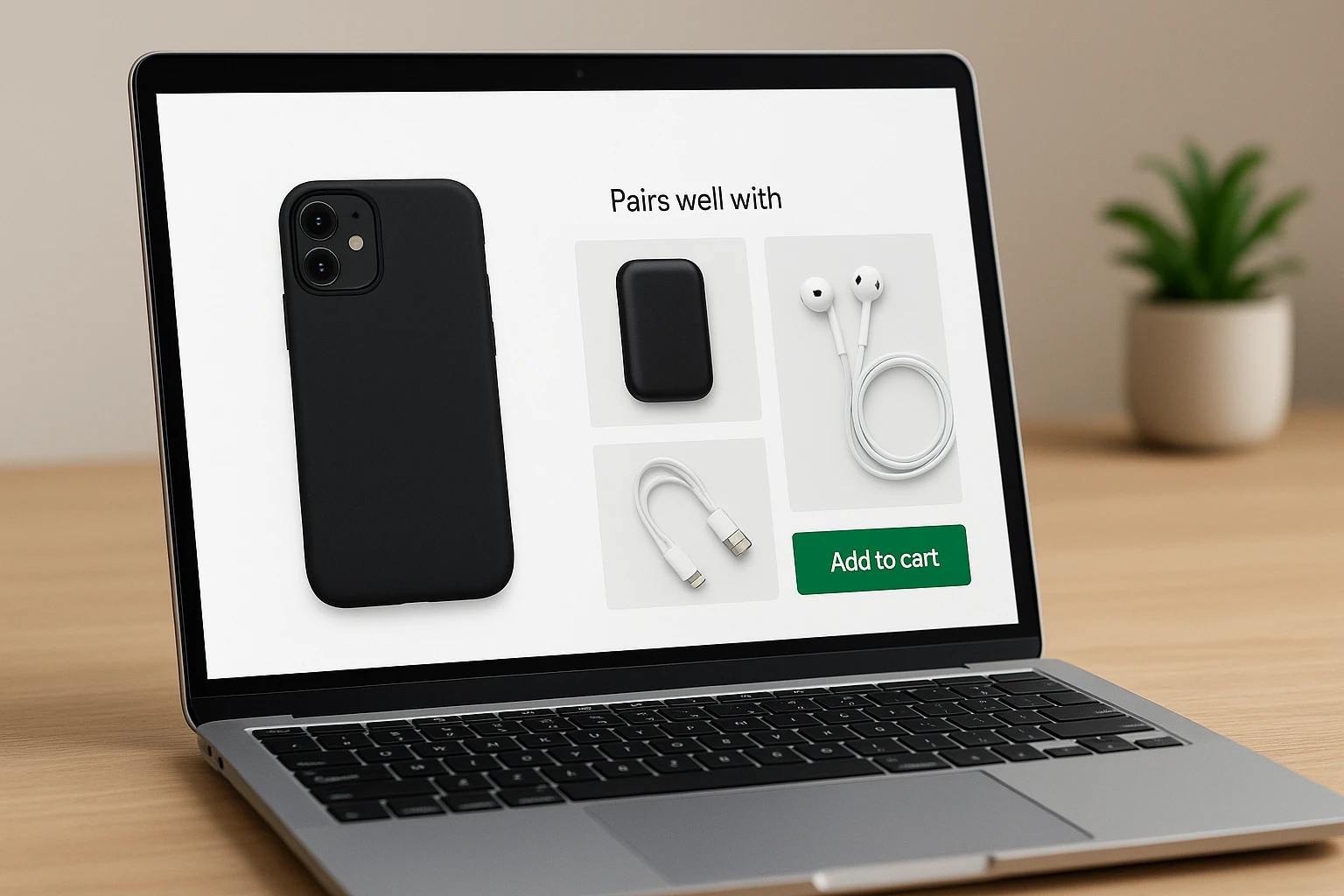
Keep the choice tight. Too many add-ons slow the buying decision.
Use Similar Products After the Core Product Information
Use related products below the description, reviews, and key details. This gives unsure shoppers an easy way to compare alternatives without blocking the main purchase path.
| Shopper intent | Best placement | Block label |
|---|---|---|
| Add an extra | Near Add to cart | Pairs well with |
| Compare options | Below product details | You may also like |
Shopify product recommendation placement works best when the block matches the shopper's next question. Related products help visitors find close substitutes.
Also Read: 7 Dynamic Storefront Features That Improve Product Discovery
2. Build the Product Page Placement in Shopify
Check Theme Support and Add the Section
Open Online Store > Themes > Customize > Products > Default product. Add Related products below product details. Add complementary items near the buy button if your theme supports the block.
Shopify themes control the section layout, and only one related-products section can appear per product page, per Shopify's setup guide.
Tip: Show two or three complementary items on mobile. A long product row pushes the main purchase action out of view.
Configure Products and Validate Eligibility
Use Shopify Search & Discovery to set manual add-ons. Keep related items as close substitutes.
| Placement | Best product match | Shopper intent |
|---|---|---|
| Near buy button | Add-ons | Complete the purchase |
| Below details | Similar items | Compare options |
Check each item is active, published to Online Store, in stock, priced above $0, and not a gift card. Shopify applies these recommendation eligibility rules.
Also Read: D2C Product Recommendations Strategy for Higher Average Order Value
3. Extend Discovery Beyond the Product Page Carefully
Prioritize Product Pages for Contextual Recommendations
Keep the strongest matches on the product page, where intent is clear. Show 2-3 complementary items near product details, such as a refill beside a cleanser. Shopify recommends this placement for add-ons, while related items can offer substitutes. Shopify’s guidance also excludes cart items and sold-out products.
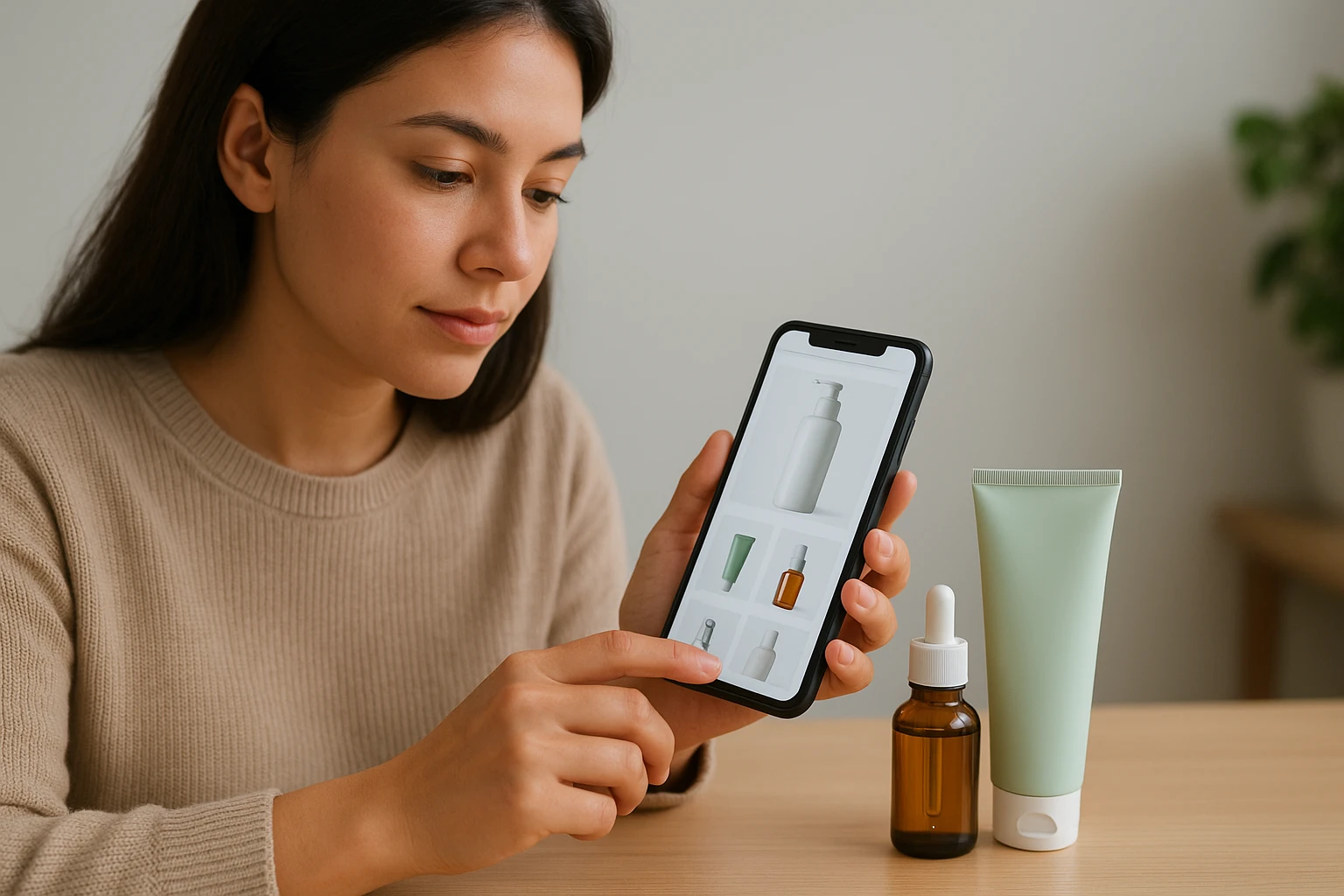
Tip: Give the block a clear reason label, such as Pairs well with.
Test Cart Recommendations Without Blocking Progress
Use the cart for low-risk extras, not big product decisions. Keep one compact row below cart items and preserve a clear checkout button.
| Cart offer | Best use | Avoid |
|---|---|---|
| Add-on | Consumables and accessories | Main product substitutes |
Test clicks, added items, and checkout starts. Remove the block if it slows progress.
Also Read: 10 Real-Time Product Recommendations for Mobile Shoppers
4. Measure Placement Quality and Improve It
Track the Journey, Not Just Recommendation Clicks
Track impressions, clicks, add-to-cart rate, checkout starts, and purchases by placement. Shopify’s recommendation conversion data follows this full path. Split results by mobile and desktop.
| Signal | What it suggests |
|---|---|
| High clicks, low cart adds | Weak product match |
| Cart adds, low purchases | Price or checkout friction |
A click is interest, not proof that the placement works.
Run a Controlled Placement Review
- Change one location at a time.
- Keep products, traffic sources, and offer stable.
- Compare equal date ranges and enough sessions.
- Keep the winner only if downstream results hold.
Use Shopify’s conversion breakdown report to spot where shoppers drop off.
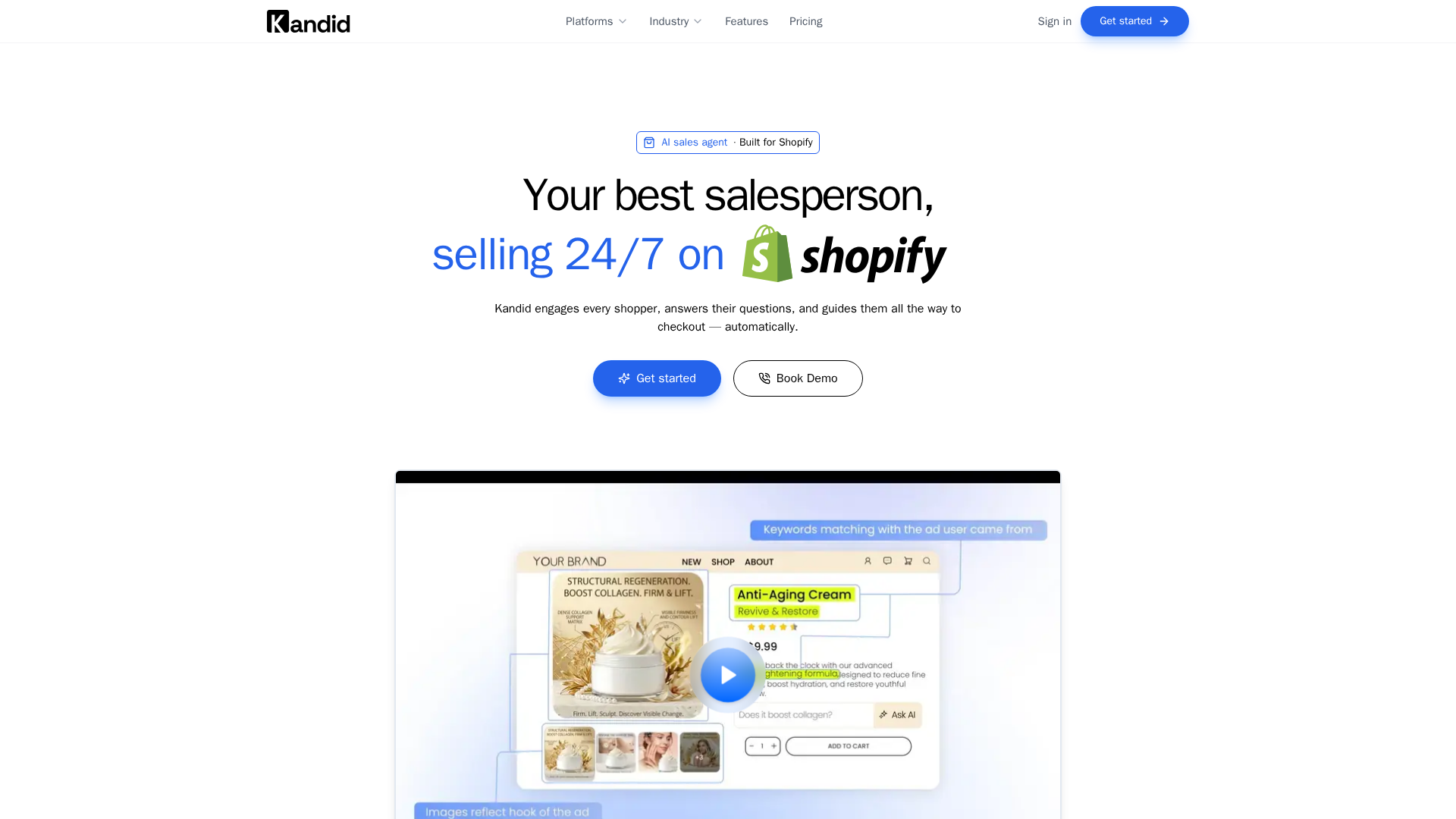
Put product guidance where shoppers need it. Kandid helps answer questions and recommend relevant Shopify products in the moment.
Frequently Asked Questions
Q1: Where should Shopify stores place product recommendations for better discovery?
Place them on product pages, cart pages, search results, and post-purchase screens. Match each placement to shopper intent. Product pages suit complements; search pages suit close substitutes.
Q2: Should recommendations appear above the fold?
Use above-the-fold space only for highly relevant alternatives or bundles. Keep the main product details clear first. Test mobile layouts to prevent recommendation blocks from pushing key buying actions down.
Q3: How many products should a recommendation block show?
Show four to six products on desktop and two to four on mobile. Too many choices can slow decisions. Remove out-of-stock, duplicate, and low-margin items from eligible recommendation sets.
Conclusion
Place related products where shoppers compare, and complementary items near purchase intent. Keep picks in stock, check mobile layouts, and measure clicks and sales. Shopify supports separate related and complementary intents, so match each slot to its job.